Private DOCX Editing Without Upload — No Account, No Cloud
Private DOCX editing without upload: edit Word in your browser with no account and no cloud mailbox. Document bytes stay on your device — the real privacy boundary, not a slogan.
Edit DOCX without upload: the document stays in this browser tab while you work — no account, and document content is not sent to EditDocx servers for editing.
You’re on a guest laptop with a contract in your inbox, no Word installed, and no interest in dropping that file into someone else’s OneDrive, Google Drive, or a “free editor” you’ll never hear from again. Resumes and offer letters feel the same: changing a few words is fine; handing the whole document to a site you just met is not.
A lot of online Word tools start the other way around. They want an account, then an upload, and only then do you get an editor. By that point the file already lives in their system, which is convenient if you wanted sync and sharing, and uncomfortable if you didn’t.
The more useful first question is boring on purpose: while you type, where does the file actually sit?

Why so many “free” editors want the file in the cloud
Cloud editors have to store something, remember who you are, and often generate share links. The straightforward way to do that is to keep a copy in an account. Autosave, the link you send a colleague, and opening the same doc on another laptop all come from that copy.
For a team, that’s the product. For three typos in a file you’ll never open again, it’s a lot of extra copies.
Word for the web keeps working documents in OneDrive or SharePoint and autosaves there. That’s how it’s built. Desktop Word for Microsoft 365 has also been testing save defaults that lean toward the cloud; Proton wrote about the OneDrive autosave shift. You don’t have to agree with anyone’s takeaway to notice that defaults decide where files go. Google Docs does a similar thing by converting the Word file into Drive.
EditDocx works differently. You bring an attachment in, edit it in this browser tab, and download it. There’s no EditDocx mailbox of customer files, and you don’t create an account — native DOCX editing without a cloud conversion hop. Document content is not uploaded to EditDocx servers for editing. That doesn’t make it “better” than Microsoft or Google. It just fits a one-off pass on a machine you don’t want to sign into.
The actual click-path is in how to open, edit, and download.
Signup walls, watermarks, and library computers
A lot of free tools ask for an email before download, stamp a PDF, or start a three-document trial. Those steps are usually about turning a visit into a user — someone whose file can stay, who can be emailed later — not about keeping your document safe.
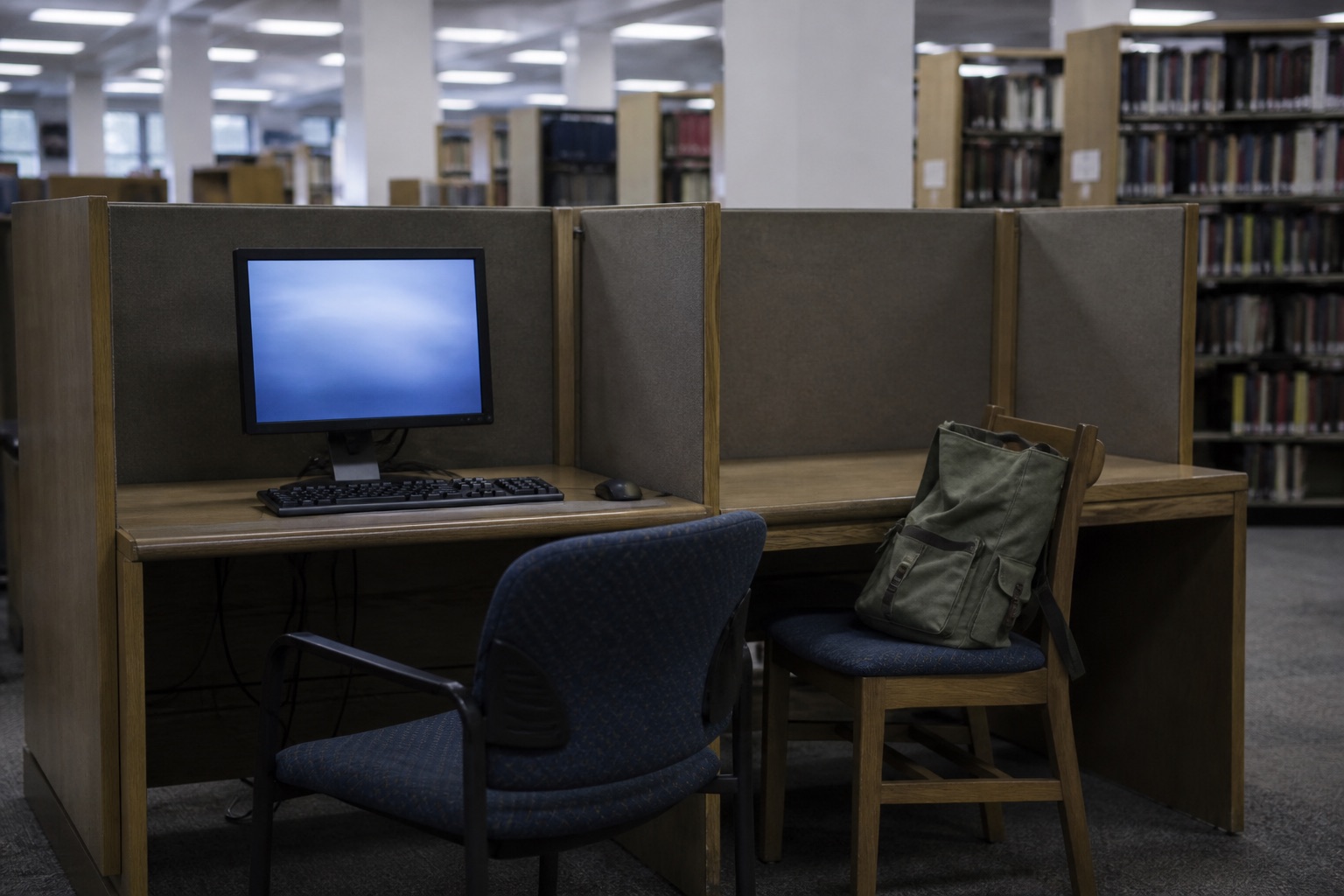
On a library PC that’s especially messy. The next person sits down at the same desk. If you signed into Microsoft or Google to “just edit homework,” you can leave the account behind.
EditDocx doesn’t ask you to register and doesn’t watermark exports to push a paid plan. It’s $0. Pricing has the same facts in one place.
What “no upload” does and doesn’t cover
EditDocx does not send the bytes of your document to its own servers while you edit. There’s no customer file locker on our side. The browser only gets the file you pick.
The site is not an air-gapped box, though. Loading the page still uses the network for scripts, styles, and fonts. Analytics can record that someone exported a PDF; they don’t record the text, the file name, or who you are. That’s in the Privacy Policy and Terms.
[File on your disk]
 → [This browser tab] the document stays here while you edit
 → network: the app shell and limited analytics
 → [Download to disk] the copy you control
Save from the keyboard is a checkpoint in this browser profile (up to 10 files, 20MB each). It isn’t OneDrive AutoSave. Clear site data and those checkpoints disappear. The copy that lasts is the download.

HTTPS helps on café Wi‑Fi. It doesn’t help if the laptop already has malware. Someone standing behind you can still read the screen. A school or work network can still log that you visited the site. If your organization says every draft has to live in a named SharePoint library, editing in a local tab can be technically cleaner and still the wrong process.
Please don’t email unredacted files to support@editdocx.net. Describe what went wrong on Contact.
So “no upload” means the editor vendor doesn’t get another copy of the body text. It doesn’t mean the document never exists anywhere except in your head.
When this is a good fit
This path is for small edits on files that feel heavy: a definition in an NDA, a start date on an offer, a typo in a quote that isn’t public yet. You open the file, change it, download it, and close the tab. The original is still on disk. Nothing extra appeared in a drive you don’t run.
If five people need to type at once, use the suite they already live in. Macros, encryption, and sensitivity labels still want desktop Word. If the file has to become a company record, use the system the company named. This editor won’t replace a vault, and it isn’t trying to.
Choosing among Word Online, Docs, and a local tab is easier once you know where each one puts the file: the comparison.
FAQ
Are files uploaded to EditDocx servers? Document content is not, for editing.
Do I need an account? No. No Microsoft account, no Google account.
Will the recent-files list sync to my phone? No. Take the download with you.
Is this a records system? No. If policy requires SharePoint, use SharePoint.
Can I edit, or only view?
You can edit everyday .docx and .xlsx files and download them. Charts, SmartArt, macros, and encrypted files are out of scope.
Open the editor · How to edit and download · Word Online vs Docs vs this tab · Privacy Policy
