How to Edit Word Online Free — No Account, No Upload
Step-by-step: edit Word online free with no account and no document upload. Open .docx in the browser, edit locally, download the same file — no Microsoft signup.
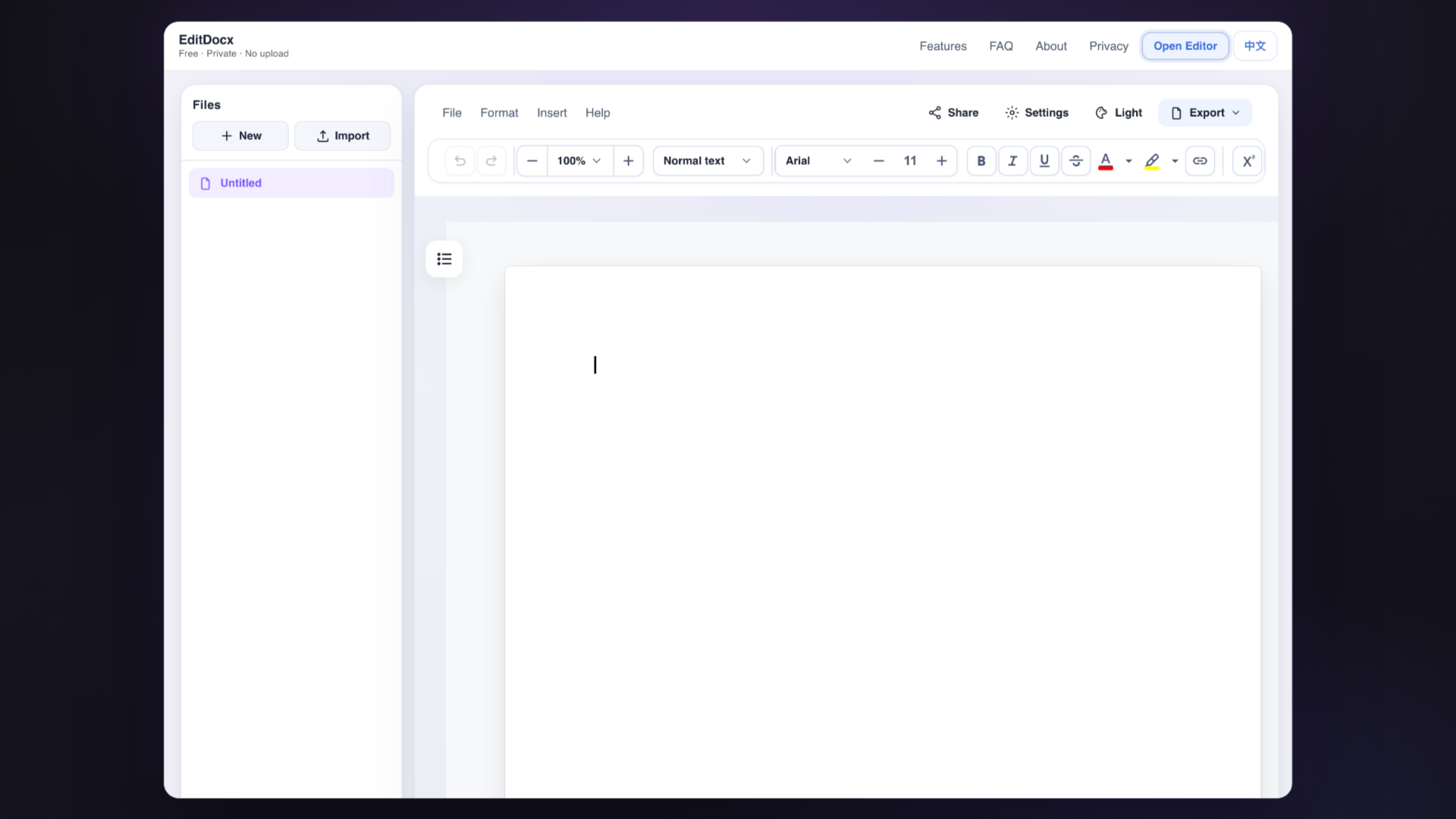
How to edit Word online free with no account: open the file in your browser tab, change what you need, and download — document content is not uploaded to EditDocx servers for editing.
Someone sends you a Word file, or a spreadsheet, and the computer in front of you doesn’t have Office. Maybe you’re on a school machine that won’t let you install anything. Maybe you’re borrowing a laptop for the afternoon. You only need to change a few lines — a name, a date, two cells in a budget — and send the same file back. In Brazil the attachment often arrives in WhatsApp first — download it on the PC (WhatsApp Web or Desktop), then open it here instead of “Open with Google Docs.” Portuguese walkthrough: DOCX do WhatsApp no PC.

The usual search result is “free online Office.” That path often starts with a signup, then an upload, then a converted document that isn’t quite the .docx they sent you. If all you wanted was to fix the attachment and return it, that’s a lot of extra machinery.
EditDocx is for that narrower situation. You open the page, drop the file in, edit in the tab, and download. There’s no account and no login wall. While you’re editing, the contents of the file are not sent to EditDocx’s servers. How that privacy line actually works is in private DOCX editing without upload.
How to do it
Keep a copy of the original first — USB stick, your own drive, an email to yourself. Don’t open that backup in the editor. If something goes sideways, you still have the file they sent.
Then:
- Go to the editor. You don’t have to log in.
- Drag in the
.docxor.xlsx, or use Import. - Make your changes in this tab. Don’t close it until you’ve downloaded; a refresh or a guest session that wipes the PC will throw away anything that only lived in memory.
- Download the same format. From a Word session you can also export PDF, but get the Word file right first. Open the download in Word, Excel, WPS, LibreOffice, or a second browser tab before you send it.

Ctrl+S / Cmd+S does not put a file in your Downloads folder. It only stores a checkpoint in this browser. The file you can actually carry around is the one you download.
You’ll need a current Chrome, Edge, Firefox, or Safari, a Word 2007+ .docx and/or an Excel 2007+ .xlsx, and a network connection long enough to load the page once. After that, the editing happens in the tab. Old .doc files won’t open; save them as .docx somewhere else first. Files over 20MB may still open this session, but they won’t sit in the recent-files list. There’s no Microsoft 365, no Excel install, and no signup. The editor is free; the workspace is at /editor/.
Word and Excel in the same place
It’s one product with two surfaces. Don’t look for PDF export from a spreadsheet session, or a pivot table inside a memo.
Word (.docx) |
Excel (.xlsx) |
|
|---|---|---|
| Open | Drag, Import, or File → Open | Same |
| Everyday work | Headings, lists, tables, images, comments, tracked changes | Sheets, cells, formulas, merges, row and column size, charts |
| Download | DOCX or PDF | XLSX |
| Out of scope | Charts, SmartArt, OLE, macros, encrypted files | Pivots, sheet images, encrypted workbooks (spreadsheet charts are supported) |
For Word, this is meant for the small stuff: a company name in a contract, a citation, a date on a resume. The toolbar handles headings and lists, bold and italic, fonts and colors, links, images, tables, headers and footers, comments, tracked changes, page breaks, find and replace. You can read a comment, reply, turn track changes on for wording, and accept or reject a straightforward insert. A forty-page styled contract, sensitivity labels, or a full Review ribbon still belong in desktop Word.
PDF export freezes whatever the browser is showing, which is not the same as Word’s printer. If the other person will open the file in Word, look at the .docx in Word (or WPS, or LibreOffice) before you trust the PDF.
For Excel, Excel Online wants a Microsoft account and Google Sheets wants Drive. Here you open a native .xlsx. A useful check: change a cell that other formulas depend on, press Enter, see whether a nearby =SUM(..) still updates, then download and reopen in Excel or WPS. Multiple sheets, common formulas, merged cells, basic number formats and colors, inserting or deleting rows and columns, and spreadsheet charts (insert or import) are in range. Pivots, pictures in sheets, conditional formatting, data validation, and password-protected workbooks are not. Complex array formulas may not come back perfectly. Arrow keys move the cell, = starts a formula, Enter commits — don’t expect every Excel shortcut to work.
If you’re adding up columns, use the spreadsheet canvas, not a table inside a Word file.
Before you send it
What you see in the browser is not always what the other person will see. Download the file and open it in Word, Excel, WPS, LibreOffice, or another EditDocx tab. Check the page or cells you actually changed, and glance at nearby tables, formulas, headers, and images.
If the layout shifted, you probably asked the browser to rebuild something that was designed as a template. Change the body text and leave the letterhead alone. Mail merge, macros, and heavy templates still belong on desktop Word. There’s more on why files drift in the layout note.
On a library PC or a guest laptop, use a private window, download to a USB stick or your phone, then clear this site’s data. Don’t sign into your personal Microsoft or Google account “just for a minute.” Nothing syncs to your other devices; you have to carry the downloaded file yourself. You need the network at least once to load the app, so don’t plan a whole flight around never opening the site again.
If you’re trying to choose between Word Online, Google Docs, and this tab, the comparison is the better starting point.
FAQ
Do I need an account?
No. You can edit Word online free with no account and no Microsoft signup. Open the editor, drop the file, edit, and download — there is no email gate and no required login wall.
Is my file uploaded to EditDocx servers?
No for editing. This is private DOCX editing without upload: document content is not uploaded to EditDocx servers while you work. The page still loads scripts and fonts. Analytics can record actions such as “exported PDF,” not the text of the file. See edit without uploading and the Privacy Policy.
Does Ctrl+S or Cmd+S download a Word file?
No. Use Download.
Can I edit a spreadsheet in the same place?
Yes. Same tab, spreadsheet canvas, download .xlsx.
Are the shortcuts identical to Microsoft Word?
The familiar ones for bold, undo, and a browser checkpoint. Not the ribbon, and not VBA.
Edits disappeared after I refreshed.
Reopen the original or the last download. This browser keeps at most 10 recent files, 20MB each. Clearing site data, or a machine that restores itself, drops them.
Open the editor · Where the file goes while you edit · Word Online, Docs, or this tab · Why layout sometimes shifts
