What Is Inside a DOCX File? It's Secretly a Zip Full of Tiny Notes
What is inside a DOCX file? Rename it to .zip and find folders of XML, your images, and metadata. Here's what each part does and why it matters.
Here is something you can do this afternoon that will make you slightly suspicious of every document you own.
Take a Word file. Make a copy. Change the end of its name from .docx to .zip. Open it.
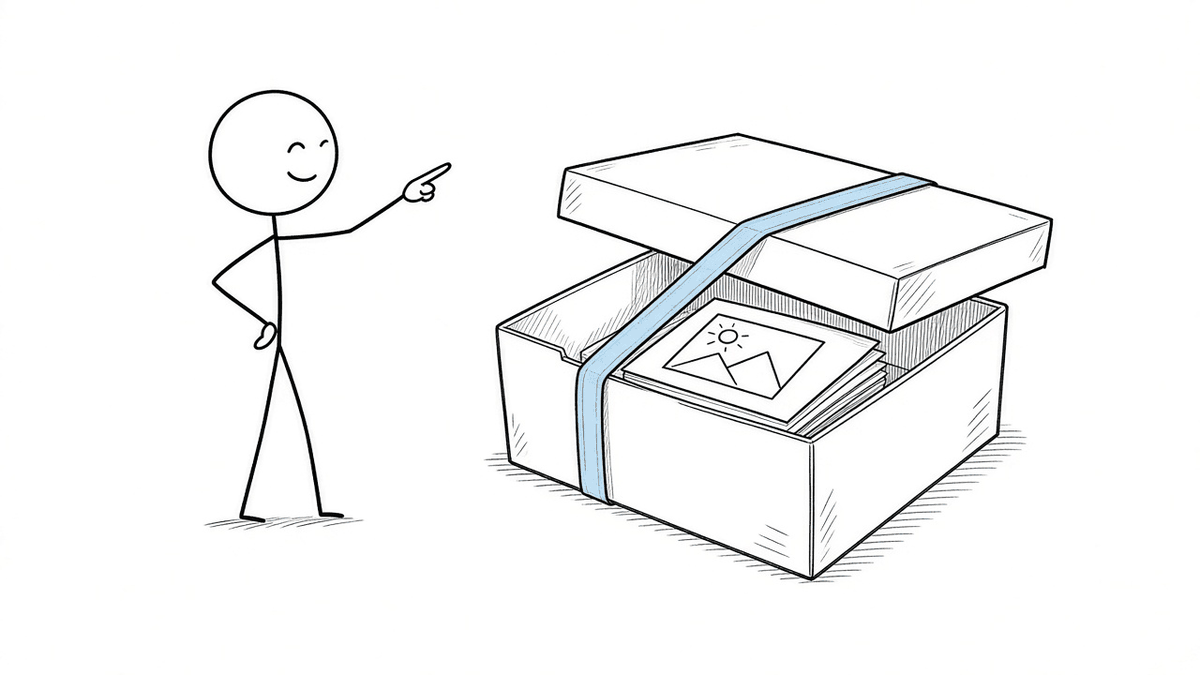
It doesn't complain. It opens like a folder. Inside are more folders, and inside those are small text files with names like document.xml and styles.xml. Your nicely formatted report, the one with the logo and the bold headings, turns out to be a box of notes held together with a rubber band.
This isn't a hack. It's how the format was designed. And once you know it, a lot of odd things about Word files start to make sense.
The rubber band is called Office Open XML
With Office 2007, Word moved from the old .doc format to .docx. The old format was a binary blob, a dense pile of bytes that mostly only Word understood. The new one is plain text files written in XML (text marked up with labels in angle brackets), packed into an ordinary zip archive.
The format is called Office Open XML. It's a published standard: ECMA-376, first approved by Ecma International in 2006, and adopted as ISO/IEC 29500 in 2008. The part describing the zip-and-labels structure is called the Open Packaging Conventions. It's why every box has a predictable shape.
Why zip it? XML is wordy. Writing <w:b/> every time something is bold adds up, and zip squashes repetition nicely. A zip also lets one file hold many separate pieces, like text, styles, and pictures, without inventing a new container. Somebody already invented the shoebox. Office just used it.
A tour of the box
Not every .docx has every part. A one-line note will have fewer than a 90-page thesis with footnotes. But a typical one looks like this:
[Content_Types].xml
_rels/.rels
docProps/core.xml
docProps/app.xml
word/document.xml
word/styles.xml
word/settings.xml
word/numbering.xml
word/comments.xml
word/media/image1.png
word/_rels/document.xml.rels
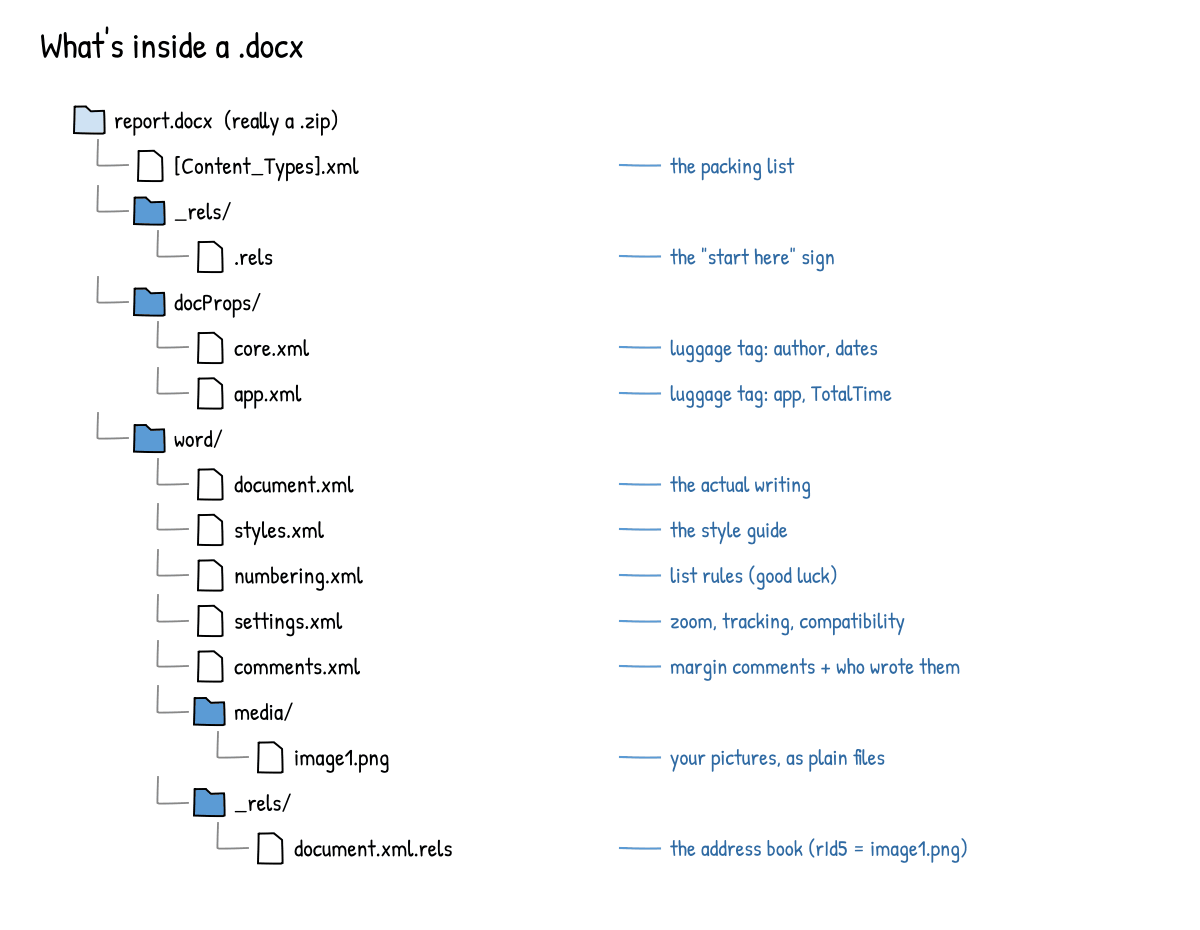
[Content_Types].xml is the packing list. It says what kind of thing each part is: ".png files are PNG images; /word/document.xml is the main document." The square brackets are real. They look like a typo. They aren't.
_rels/.rels is the "start here" sign. "Rels" means relationships. It tells a program where the main document and the properties live, like a note taped to the fridge door.
word/document.xml is the actual writing. Each paragraph is a <w:p> tag. Inside are "runs", <w:r>, which are stretches of text sharing the same formatting, and the words sit in <w:t> tags. "Hello world" becomes two runs: one plain, one bold. In a text editor this file is usually crammed onto one enormous line, as if someone packed a suitcase by sitting on it.
word/_rels/document.xml.rels is the address book. The text doesn't hold pictures. It holds an ID like rId5, and this file says rId5 means media/image1.png. Same for headers, footers, and web links.
word/styles.xml is the style guide. "Heading 1 is 16-point and blue." Paragraphs mostly just say "I'm Heading 1" and let this file handle the details.
word/numbering.xml handles lists. It's one of the most complicated files in the box, which will surprise nobody who has watched a numbered list jump from 3 back to 1 for no reason.
word/settings.xml holds document-wide preferences, such as zoom, whether tracked changes are on, and compatibility options that tell Word to behave like an older version of itself.
word/comments.xml stores margin comments, each tagged with an author and a date. Headers, footers, footnotes, fonts, and the theme get their own files too.
word/media/ holds the pictures, as normal image files.
docProps/core.xml and docProps/app.xml are the luggage tags. More on those in a second, because they're the drawer you most want to check.
What this means in real life
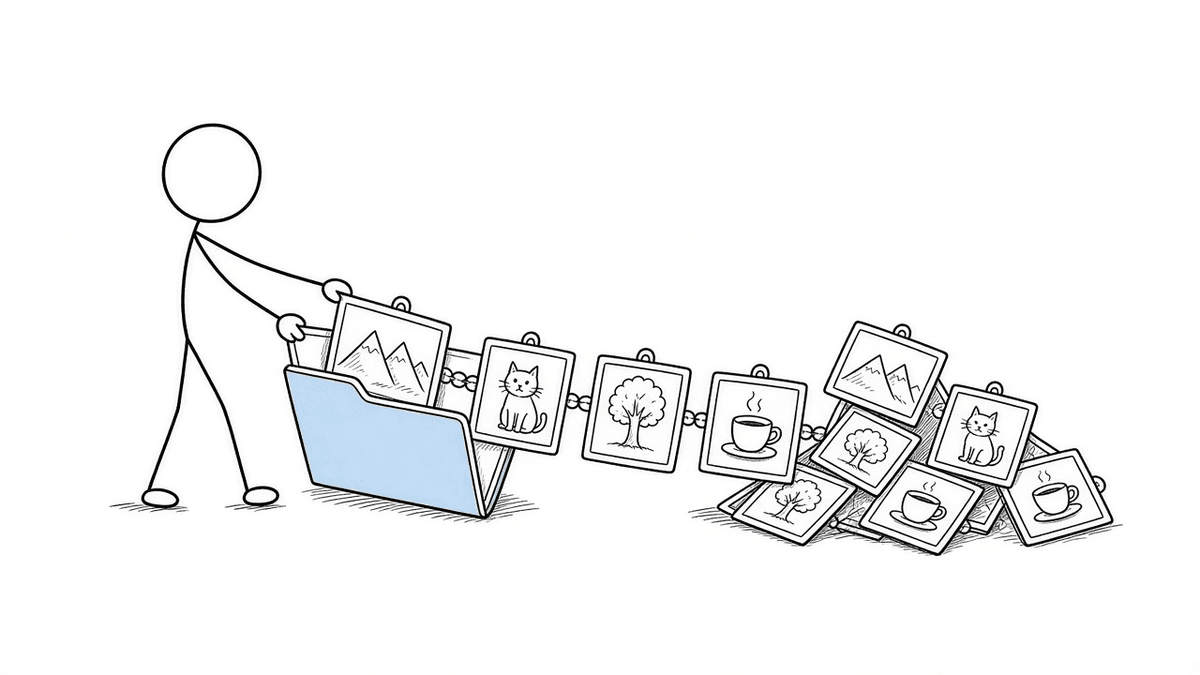
Images: you can pull them all out in ten seconds
Because pictures sit in word/media/ as ordinary files, you don't have to right-click and save each one. Open the zip, open media, drag the folder out. Handy when someone sends a report with 40 product photos and you want the photos, not the report. You get the images as stored in the document, which may be compressed if Word shrank them on save.
Metadata: your document may be telling people who you are
Open docProps/core.xml and you'll typically find:
dc:creator: who first made the documentcp:lastModifiedBy: who saved it lastdcterms:createdanddcterms:modified: whencp:revision: how many times it was saved
docProps/app.xml may add the app that made it, a Company name, the template, and TotalTime, the minutes the file was open for editing. That last one is a fun number to read on a document someone "spent all weekend on."
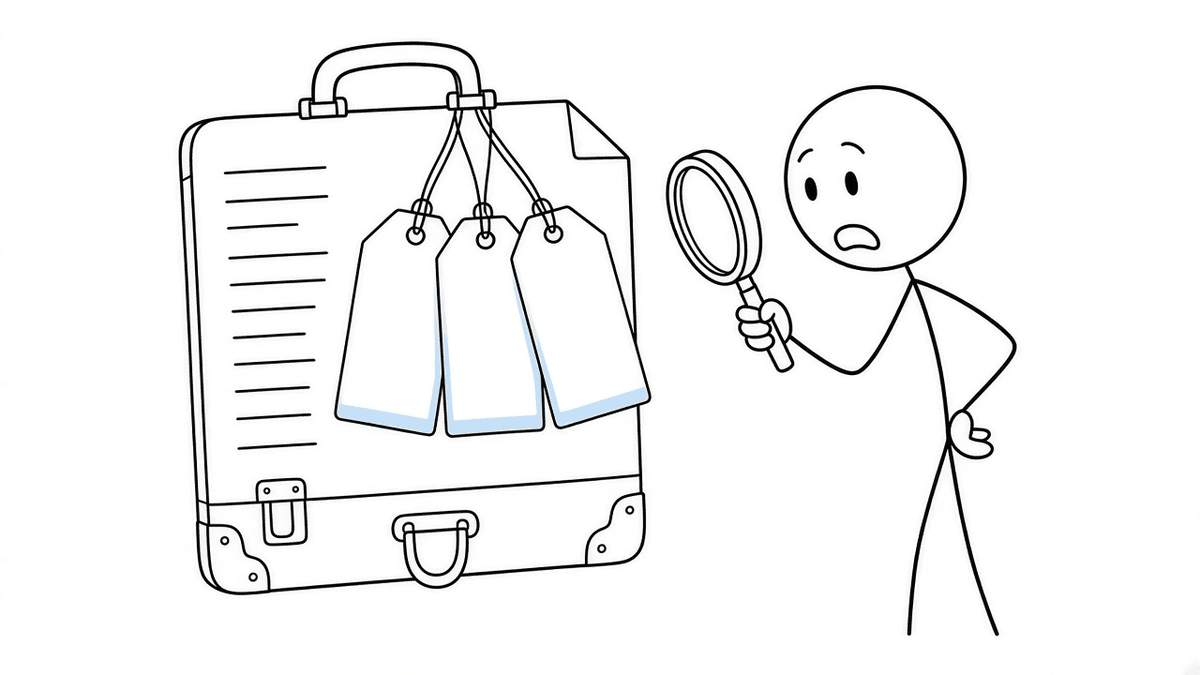
None of this is secret. It powers the Properties panel. But it travels with the file. Send a contract template to a client and they may see it was created by someone at a different company. Comments and tracked changes carry author names too.
Privacy tip: before sharing a file outside your organization, check its properties. In Word for Windows, use File → Info → Check for Issues → Inspect Document to find and remove personal information. Or open core.xml in a zip copy and look. For more on keeping contents private while you edit, see Editing DOCX Without Upload.
Formatting: why it breaks when another app touches the file
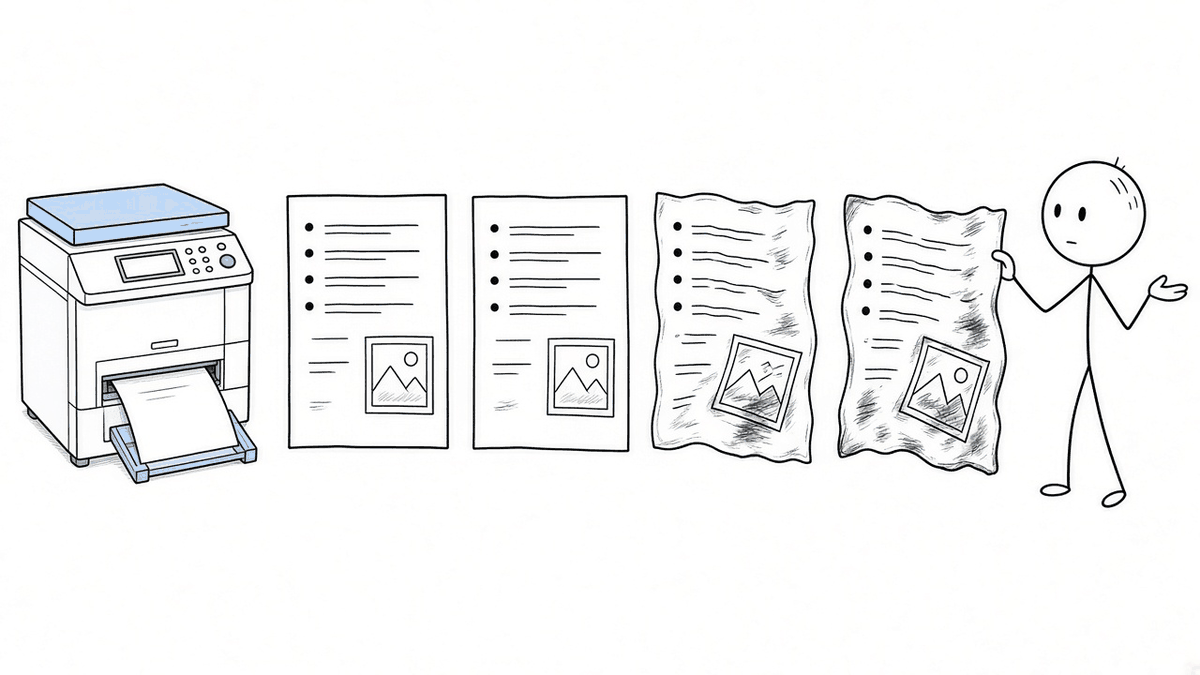
A .docx is a set of instructions, and programs follow instructions differently. Many apps convert the XML into their own internal idea of a document, then write fresh XML when you save. Anything they didn't understand, like an unusual list setting, a compatibility flag, or a text box anchored just so, can get simplified or dropped on the way back.
It's like photocopying a photocopy. Each pass is mostly fine. The edges get fuzzier. We covered one common case in Google Docs Broke Your Word Formatting. The usual fix: edit the .docx itself and change as little as you need.
Privacy, part two: why a browser can edit it without uploading
Here's the quietly important one. A zip and a pile of XML are things a modern browser can handle by itself. JavaScript in a tab can read a file you pick, unzip it in memory, change the XML, zip it back up, and hand you a new file to download. None of those steps needs a server. The file goes from your disk to the tab and back without leaving your machine.
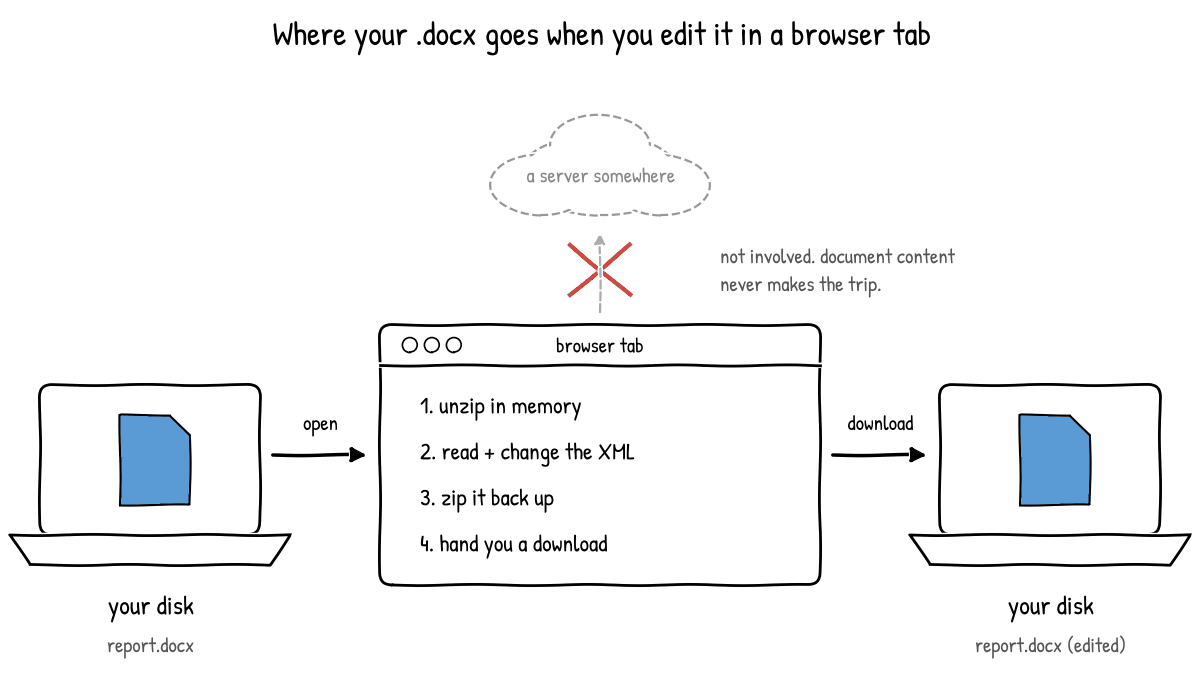
That's how EditDocx works. Editing happens locally in your browser tab, and document content isn't uploaded to EditDocx servers. No account, no signup. The hands-on version is in How to Edit Word Online Free.
.xlsx and .pptx are the same trick
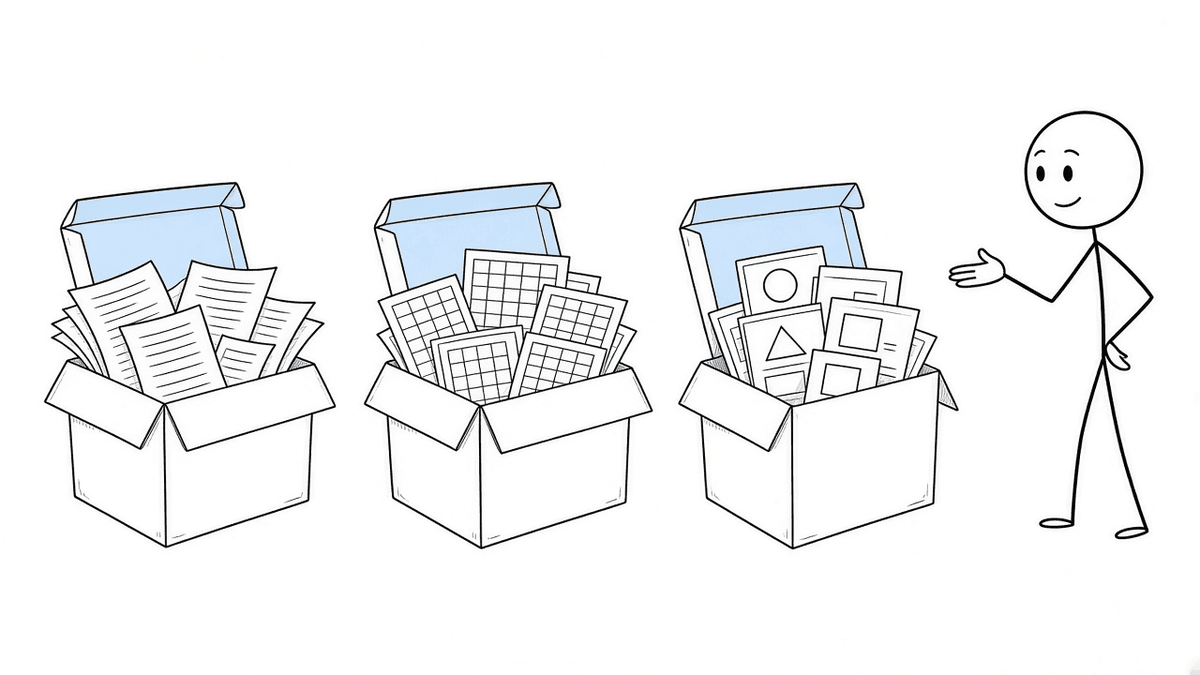
Rename a .xlsx to .zip and you'll find an xl/ folder with each sheet in xl/worksheets/, plus sharedStrings.xml, which stores repeated text once so the file doesn't spell out "Total" 4,000 times. A .pptx has ppt/slides/, one XML file per slide, and its own ppt/media/ full of pictures. The luggage tags in docProps/ are there too.
Try it yourself
Always use a copy. Leave the original alone.
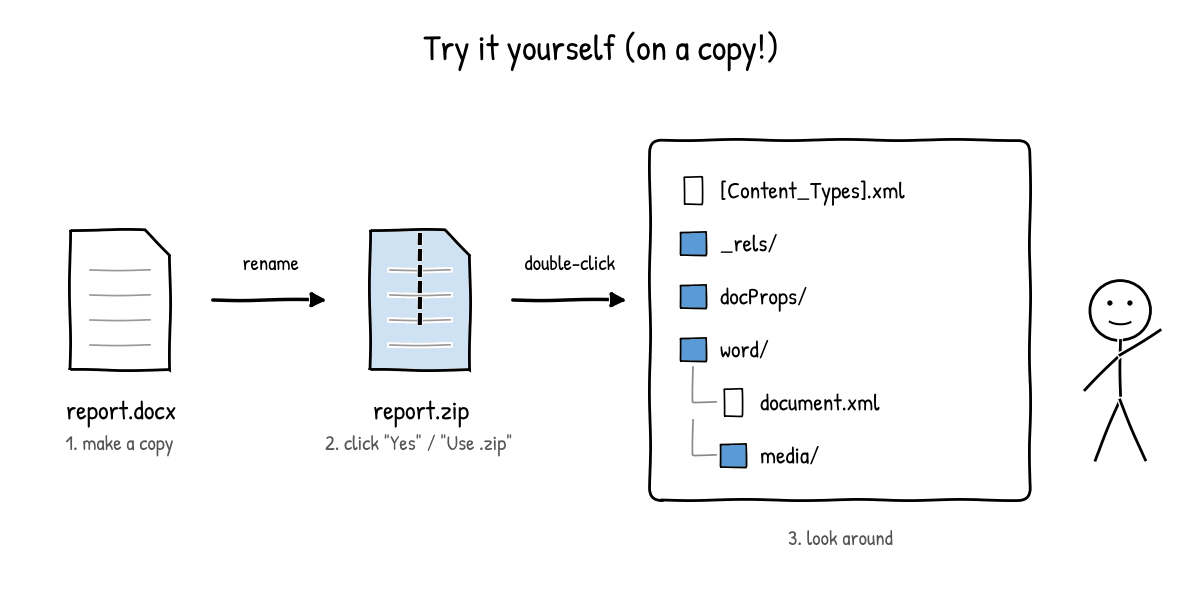
On Windows 10 or 11:
- Copy a
.docxfile. - Show file extensions. Windows 11: in File Explorer, View → Show → File name extensions. Windows 10: View tab, tick File name extensions.
- Rename the copy from
report.docxtoreport.zip. Click Yes when Windows warns the file might become unusable. It's mostly bluffing. - Double-click the zip. It opens like a folder.
- Open
word, dragdocument.xmlout, and open it in Notepad or a browser.
On a Mac:
- Select the file in Finder and press Cmd+D to duplicate it.
- To see extensions, go to Finder → Settings → Advanced and turn on Show all filename extensions.
- Rename the copy to end in
.zipand choose Use .zip when asked. - Double-click it. Archive Utility unpacks it into a normal folder.
- Open the files in TextEdit or a browser.
Bonus: in Terminal, unzip -l report.docx lists everything inside without renaming anything.
To rebuild one, zip the contents so [Content_Types].xml sits at the top level (not inside an extra folder), then rename it to .docx.
So, what is a .docx, really?
A box of tiny notes, a packing list, a "start here" sign, and some luggage tags you may not have known were attached. Word reads them all at once and shows you a page.
Most days you'll never need to look. But it's nice to know the box is there, that you can open it, and that your browser can too. If you want a quick edit without installing anything or sending the file anywhere, EditDocx is one way to do it. It doesn't support Word charts, SmartArt, OLE objects, macros, or password-protected files, so elaborate documents are still a job for desktop Word. One note: Ctrl/Cmd+S saves a checkpoint in your browser, not a download. Use the download button to get the file back.
FAQ
Is it safe to rename a .docx to .zip?
Yes, on a copy. Renaming changes only the name, not the contents. Rename it back to .docx and Word opens it normally, as long as nothing inside was changed.
What is inside a docx file, in one sentence?
A zip archive of XML files: the text (word/document.xml), styles, lists, settings, comments, images (word/media/), and properties like author and dates (docProps/), tied together by relationship files.
Can I remove the author name from a Word document?
Yes. In Word for Windows, use File → Info → Check for Issues → Inspect Document. You can also look at docProps/core.xml in a zip copy to see exactly what's stored. Comments and tracked changes carry names too.
Why does my .docx look different in another app? Each app reads the XML into its own model and writes new XML on save. Features it doesn't fully support can be simplified or lost. Fewer round trips between apps means fewer surprises.