How to Edit XLSX Spreadsheets Online (No Account, No Upload)
Edit Excel .xlsx in your browser — 0 account · 0 upload · download .xlsx. Import locally, edit cells and formulas, then verify the workbook.
Someone sends you a .xlsx budget, roster, or price list. You are on a Chromebook, a library PC, or any machine where installing Excel or signing into Microsoft 365 feels like overkill. Excel Online wants a Microsoft account. Google Sheets wants the file in Drive.
The short answer: open the workbook in EditDocx, edit in the browser, download a normal .xlsx, and reopen that copy to verify. Spreadsheet content is processed in your tab — nothing is uploaded to EditDocx servers for editing. No Microsoft account, no install, free to use.
| EditDocx | Excel Online | Google Sheets | |
|---|---|---|---|
| Account | No | Microsoft | |
| Upload to edit | No (browser tab) | Yes (OneDrive) | Yes (Drive) |
| Collaboration | Solo | Real-time | Real-time |
| Best for | One-off private .xlsx |
Teams in Microsoft 365 | Teams in Google |
This walkthrough takes about five minutes. Keep an untouched backup of the original before you edit.
What you need
- 1 modern browser (Chrome, Edge, Firefox, or Safari)
- 1
.xlsxfile (Excel 2007 and later) - Internet long enough to load the page once
No Microsoft account. No Excel install. No signup wall.
Need the no-signup product page? See edit Excel online free — no signup.
Already editing Word files? See our DOCX tutorial — the same local-first model applies to both formats.
Step 1: Open the editor
Go to editdocx.net/editor.
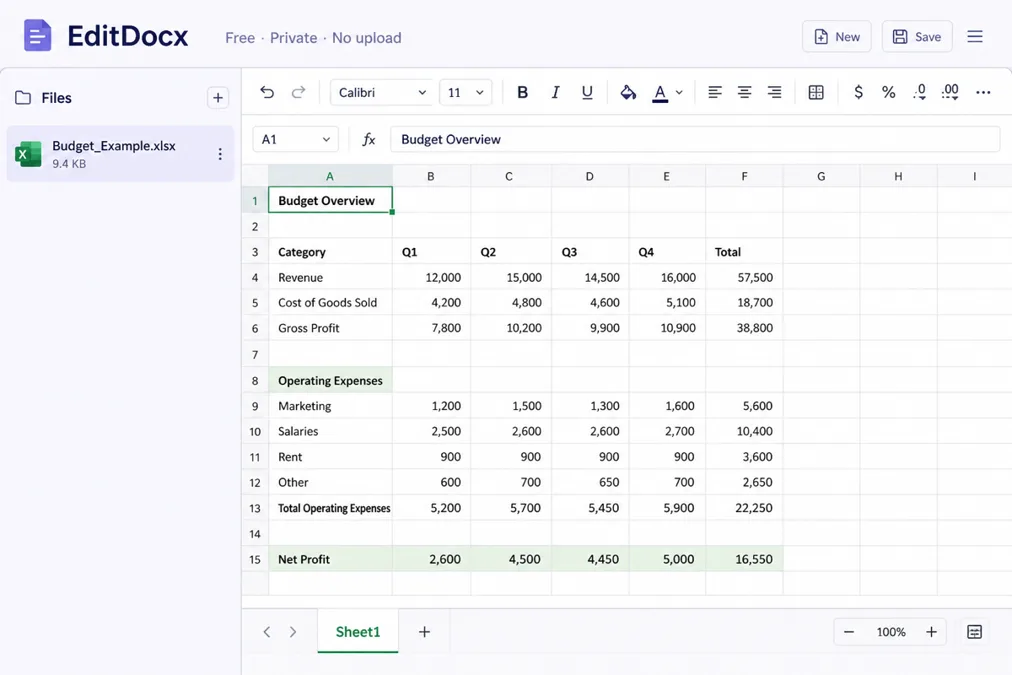
You land in the workspace immediately — no "create an account to continue." The Files panel on the left lists up to 10 recent files stored in your browser. The main area is ready for a new document or spreadsheet.
Tip: Bookmark the page if you edit attachments often. On a shared computer, use a private window and download when finished.
Step 2: Open your spreadsheet
Three ways to import a .xlsx file:
- Drag and drop — Drop the file onto the page (works for both
.docxand.xlsx). - Import button — Click Import in the Files panel and choose your file.
- File menu — In the spreadsheet toolbar, open File → Import .xlsx.
EditDocx parses the workbook in your browser. Processing stays on your device; the file is not sent to EditDocx for storage or conversion.
What happens under the hood: A .xlsx file is a ZIP of XML sheets, shared strings, and styles. EditDocx unpacks it in memory, builds an editable model, and renders it in a spreadsheet grid. Saving walks that model back into bytes you download — no server round-trip for file content. The same approach applies to Word; see how client-side editing works.
Step 3: Edit (quick example)
Suppose you received Q3-budget.xlsx and only need to change one number and a label.
- Click the cell (for example
B12) and type the corrected amount. - Press Enter. If other cells use
=SUM(..)over that range, the grid shows the recalculated result when the formula is supported. - Update a header cell if the sheet title is wrong.
- Switch sheet tabs at the bottom if the change lives on another sheet.
Beyond that one-off fix, the editor also covers:
- Multiple sheets — Switch tabs at the bottom, same as Excel.
- Formulas — Enter formulas such as
=SUM(A1:A10); common functions round-trip on save. - Merged cells — Imported merges display correctly; merge or unmerge from the Format menu.
- Formatting — Bold, italic, alignment, number formats, and basic colors via the ribbon (Start tab) or Format.
- Rows and columns — Insert or delete from the Insert menu when a range is selected.
For everyday tables — budgets, rosters, simple models — this is usually enough without desktop Excel.
Step 4: Save, download, and verify
- Save to recent files — Press Ctrl+S (Windows/Linux) or Cmd+S (Mac), or choose File → Save. EditDocx stores the file in browser IndexedDB (up to 10 files, 20MB each).
- Download — Choose File → Download .xlsx or press Ctrl+Shift+S / Cmd+Shift+S.
- Verify — Reopen the downloaded file in Excel, WPS, LibreOffice, or EditDocx itself. Check the cells you changed and any formulas that depended on them.
Your edited workbook is a standard .xlsx. Verification matters most when the sheet uses formulas you care about — do not treat "it looks right in the browser" as the only check for financial or compliance files.
Privacy: same promise as DOCX
EditDocx does not upload spreadsheet content to its servers for editing. Ads (if shown) are separate from the editor path. Your cells, formulas, and sheet names stay in the browser session unless you download or save them locally.
For architecture detail, read Edit DOCX Without Uploading to the Cloud — the spreadsheet path follows the same local-only design. Product framing for no-account Excel: edit Excel online free — no signup.
What works and what does not
EditDocx targets everyday spreadsheet edits, not a full Excel replacement. Saying that up front is more useful than promising feature parity.
Supported on import and export
- Multiple sheets and hidden sheets
- Cell values (text, numbers, booleans)
- Formulas with cached results
- Merged cells
- Column widths and row heights
- Basic fonts, alignment, fills, borders, and number formats (export-side styles are most reliable)
- Spreadsheet charts: insert column, bar, line, area, pie, doughnut, scatter, bubble, histogram, combo, and more — or import existing Excel charts; downloads keep editable chart objects
Not supported (use desktop Excel or Excel Online instead)
- Pivot tables
- Images embedded in cells
- Conditional formatting and data validation
- Password-protected or encrypted workbooks
- Freeze panes (may not round-trip)
- Power Query / Power Pivot / live co-authoring
If your file depends on pivots, sheet images, or workbook protection, use desktop Excel (or Excel Online if an account and cloud copy are acceptable). For quick cell edits — or everyday charts without an account — EditDocx is usually enough.
When not to use EditDocx
Skip this path when you need someone else in the same workbook at the same time, when IT requires drafts in a named OneDrive or SharePoint library, when the model depends on pivots or Power Query, or when the file is encrypted. Those jobs belong in Microsoft 365 or desktop Excel.
When to use EditDocx vs Excel Online vs Sheets
| EditDocx | Excel Online | Google Sheets | |
|---|---|---|---|
| Account required | No | Microsoft account | Google account |
| File stored in cloud | No (browser / download) | OneDrive by default | Drive by default |
| Server upload of content | No (EditDocx editing path) | Yes (Microsoft servers) | Yes (Google) |
| Install required | No | No (browser) | No (browser) |
| Price | Free | Free tier with Microsoft account | Free tier with Google account |
Choose EditDocx when privacy, no account, or no cloud copy matters — HR rosters, client pricing sheets, school lab PCs, or everyday charts in .xlsx. Choose Excel Online when you need co-authoring, pivots, Power Query, or deep Excel feature parity and are fine with a Microsoft account. Choose Sheets when the team already lives in Drive and conversion is acceptable. Longer fit check: Word Online / Excel Online / Sheets vs EditDocx.
How we checked this guide
We wrote this against the live EditDocx spreadsheet editor: open a sample .xlsx, edit cells and a basic SUM, insert or import a chart, download, and reopen the result. Limits in the "what does not" section match current product behavior (pivots and protected workbooks are out of scope; spreadsheet charts are supported). If a step diverges after a product update, prefer what you see in the editor UI and treat this page as the intended flow.
FAQ
Is my XLSX file uploaded to a server?
No. Import, edit, and export for editing happen in your browser. EditDocx does not receive the workbook content for cloud storage or conversion.
Do I need a Microsoft account?
No. Open the editor and import your file — there is no signup wall for this flow.
Can I edit both Word and Excel files in the same app?
Yes. EditDocx supports .docx and .xlsx. Switch between them from the Files panel — each opens in the appropriate editor.
Will my formulas survive save and re-open?
Common formulas (SUM, AVERAGE, basic arithmetic) round-trip in typical files. Complex array formulas or cross-workbook references may need verification in desktop Excel after download.
What is the file size limit?
Recent files are stored up to 20MB each (max 10 entries). Larger files can still be opened in the current session via drag-and-drop.
Can I export to PDF from a spreadsheet?
PDF export applies to Word documents. Spreadsheets download as .xlsx.
Does EditDocx support Google Sheets (.gsheet) files?
No. Input is limited to .xlsx. Export a copy from Google Sheets as .xlsx first, then open it in EditDocx.
Is EditDocx free?
Yes — no subscription and no trial limit for this editor flow.
Next steps
- Open the editor and try a
.xlsxattachment. - Product / no-signup page: edit Excel online free — no signup.
- Step privacy architecture (shared with Word): edit without upload.
- Comparisons: vs Excel Online, Sheets, and Word Online.
- Read the Word editing guide if you also work with
.docxfiles. - Browse the FAQ for formats, limits, and privacy.